
XF 1600 IFU 5.0 en.pdf
Vista previa de texto
Chapter 10
Registering panel/subset panel and workitems
6 Click [OK].
The subset panel is registered and the dialog box closes.
The subset panel created is displayed in the [Panel Master Registration] dialog box.
To register another subset panel, repeat steps 4 to 6.
You can register up to 24 subset panels for one panel.
7 Click [OK] in the [Panel Master Registration] screen.
The master panel is registered. The newly created panel is added at the bottom of the [Panel List], and the
subset panels are also shown in the [Subset Panel List] when the panel is selected in the [Panel List].
10.3
Registering subset panel analysis conditions while
running a sample
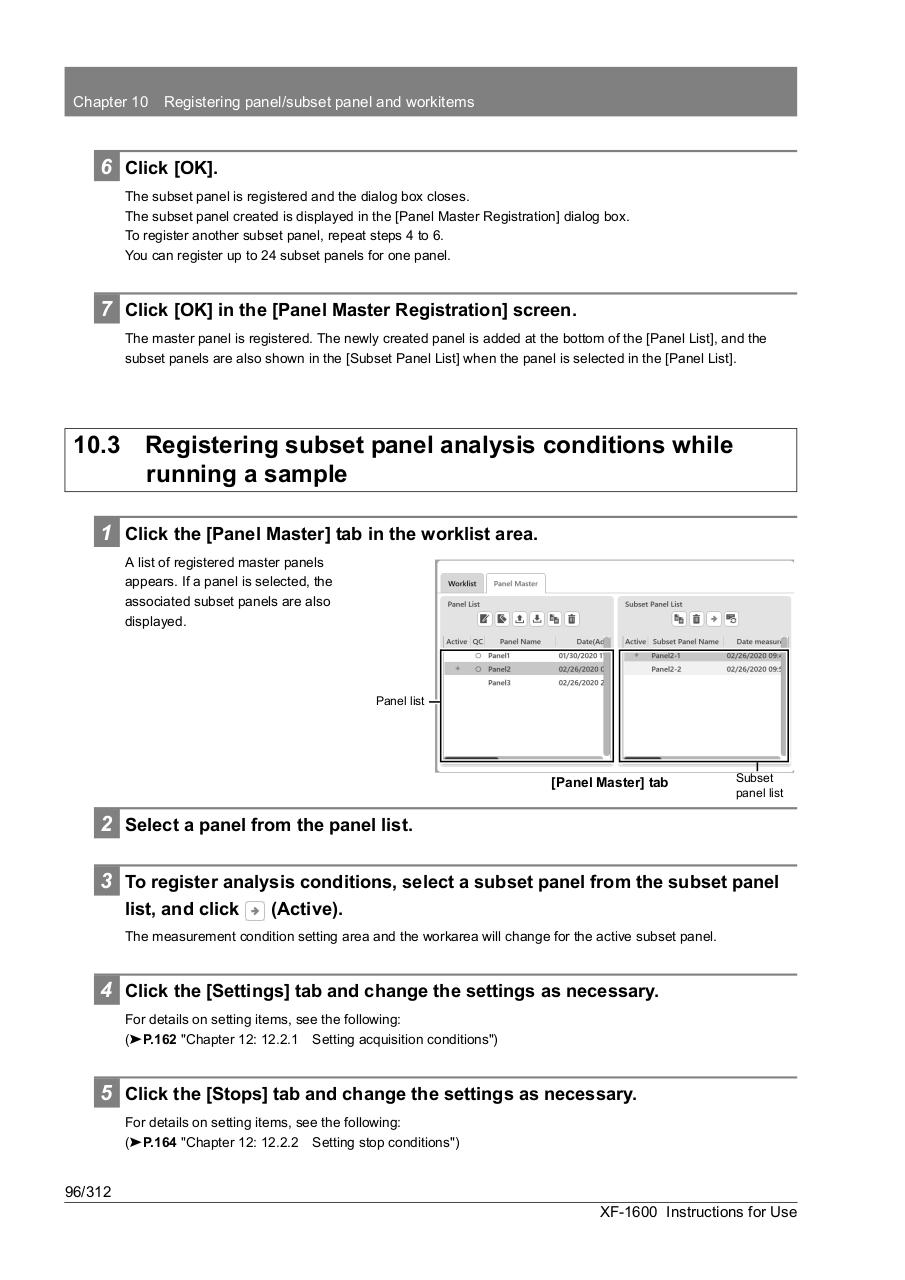
1 Click the [Panel Master] tab in the worklist area.
A list of registered master panels
appears. If a panel is selected, the
associated subset panels are also
displayed.
Panel list
[Panel Master] tab
Subset
panel list
2 Select a panel from the panel list.
3 To register analysis conditions, select a subset panel from the subset panel
list, and click
(Active).
The measurement condition setting area and the workarea will change for the active subset panel.
4 Click the [Settings] tab and change the settings as necessary.
For details on setting items, see the following:
(➤P.162 "Chapter 12: 12.2.1 Setting acquisition conditions")
5 Click the [Stops] tab and change the settings as necessary.
For details on setting items, see the following:
(➤P.164 "Chapter 12: 12.2.2 Setting stop conditions")
96/312
XF-1600 Instructions for Use