
XF 1600 IFU 5.0 en.pdf
Vista previa de texto
Chapter 10
Registering panel/subset panel and workitems
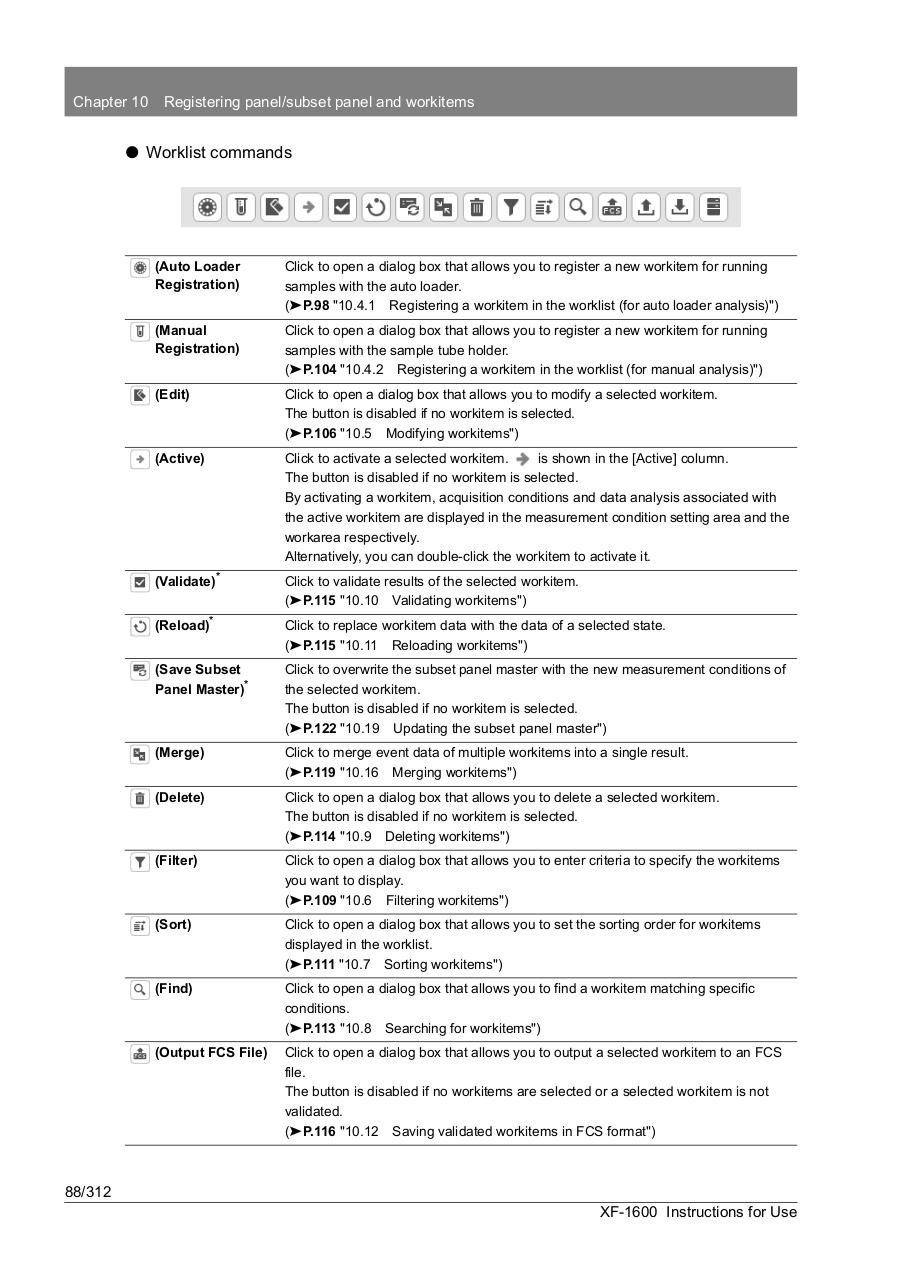
⏺ Worklist commands
(Auto Loader
Registration)
Click to open a dialog box that allows you to register a new workitem for running
samples with the auto loader.
(➤P.98 "10.4.1 Registering a workitem in the worklist (for auto loader analysis)")
(Manual
Registration)
Click to open a dialog box that allows you to register a new workitem for running
samples with the sample tube holder.
(➤P.104 "10.4.2 Registering a workitem in the worklist (for manual analysis)")
(Edit)
Click to open a dialog box that allows you to modify a selected workitem.
The button is disabled if no workitem is selected.
(➤P.106 "10.5 Modifying workitems")
(Active)
Click to activate a selected workitem.
is shown in the [Active] column.
The button is disabled if no workitem is selected.
By activating a workitem, acquisition conditions and data analysis associated with
the active workitem are displayed in the measurement condition setting area and the
workarea respectively.
Alternatively, you can double-click the workitem to activate it.
(Validate)*
Click to validate results of the selected workitem.
(➤P.115 "10.10 Validating workitems")
(Reload)*
Click to replace workitem data with the data of a selected state.
(➤P.115 "10.11 Reloading workitems")
(Save Subset
Panel Master)*
Click to overwrite the subset panel master with the new measurement conditions of
the selected workitem.
The button is disabled if no workitem is selected.
(➤P.122 "10.19 Updating the subset panel master")
(Merge)
Click to merge event data of multiple workitems into a single result.
(➤P.119 "10.16 Merging workitems")
(Delete)
Click to open a dialog box that allows you to delete a selected workitem.
The button is disabled if no workitem is selected.
(➤P.114 "10.9 Deleting workitems")
(Filter)
Click to open a dialog box that allows you to enter criteria to specify the workitems
you want to display.
(➤P.109 "10.6 Filtering workitems")
(Sort)
Click to open a dialog box that allows you to set the sorting order for workitems
displayed in the worklist.
(➤P.111 "10.7 Sorting workitems")
(Find)
Click to open a dialog box that allows you to find a workitem matching specific
conditions.
(➤P.113 "10.8 Searching for workitems")
(Output FCS File)
Click to open a dialog box that allows you to output a selected workitem to an FCS
file.
The button is disabled if no workitems are selected or a selected workitem is not
validated.
(➤P.116 "10.12 Saving validated workitems in FCS format")
88/312
XF-1600 Instructions for Use